Asana Workflow Tracking: Automation, Intake, and Reporting
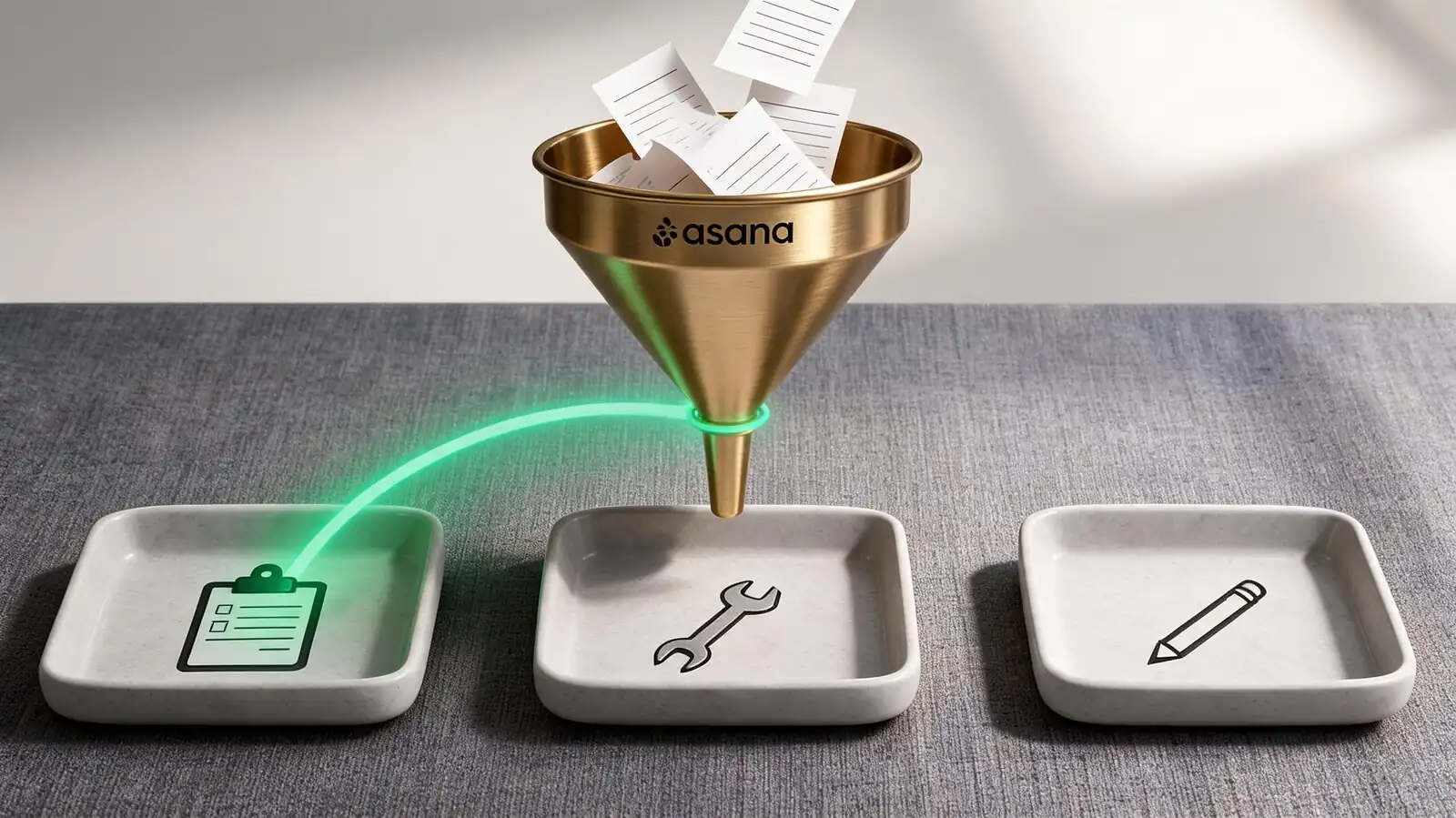
What a Asana Workflow Tracker Includes
A workflow tracker in Asana is a project whose sections represent stages, whose custom fields capture process metadata, and whose rules move work between stages. Boards make stages visible; lists make metadata legible.
The building blocks are the same as a regular project, used with discipline. The distinguishing feature is that stages are the structure, not the team\'s arbitrary preference.
- Projects as workflow — one project per process; sections (or board columns) are stages
- Custom fields for metadata — priority, request type, customer, SLA target, owner, decision
- Forms for intake — every workflow has at least one Form so non-Asana users can submit requests
- Rules for transitions — automate the routine moves; reserve manual transitions for human-judgement steps
- Deadline-bound vs ongoing — campaign tracker (deadline) vs support queue (ongoing); the dashboards differ
The biggest design mistake is conflating two workflows into one project. Each stable process deserves its own project, even if the team is the same.
One process per project. Sections are stages, custom fields are metadata, rules are transitions.
Intake, Forms, and Request Routing
Forms turn requests into structured tasks. They enforce required fields, route by branching logic on Advanced, and reduce the back-and-forth that bogs down intake.
A well-designed Form captures everything the assignee needs to start work. Bad Forms shift the back-and-forth from email to Asana — same problem, different surface.
- Required fields — request type, deadline, customer or project context, attachments
- Branching — Advanced plan; show follow-up questions based on previous answers (e.g. "Bug" branch asks for browser/version)
- Assignment — auto-assign to the team triage lead or round-robin across the team
- Priority and triage — set priority default on Form, escalate manually if needed
- Confirmation — Form submitters get a confirmation; expose the task URL in that confirmation if external collaborators are involved
Don\'t over-engineer Forms. Five required fields is plenty; ten kills submission rates.
Forms enforce intake quality. Five required fields, branching on Advanced, auto-assign to triage.
Automation Rules and Triggers
Rules combine triggers, conditions, and actions. Trigger fires; condition filters; action executes. Mature workflows use 5–15 rules per project; more than that signals over-engineering or process drift.
The trick is keeping rules legible to the next admin who inherits the project. Naming, documentation, and quarterly audits make the difference between a workflow that scales and one that ossifies.
- Status-change automation — when section moves to In Review, notify the reviewer team; when stage = Done, archive after 30 days
- Due-date automation — 24 hours before due date, comment with checklist; if overdue, escalate
- Conditions and actions — chain conditions: priority = High AND assignee is missing → assign to lead
- Usage caps — Personal: 0 rules. Starter: 250 runs/month/project. Advanced: 25,000 actions/month/project. Verify May 20, 2026.
- Failure handling — rules can be paused if a target user leaves the workspace; check rule health monthly
- Human review — never automate compliance approvals, client-facing communications, or anything touching money
A rule that fires 200 times a day quietly inflates plan tier usage. Watch usage before celebrating clever automations.
Trigger + condition + action. Cap at 5–15 rules per project, name them descriptively, audit quarterly.
Workflow Dashboards and Bottlenecks
Workflow dashboards measure flow, not output. Time-in-stage, overdue work by stage, queue depth by owner — these signals reveal where the process is jammed.
A useful workflow dashboard has six cards and one rule of thumb: each card answers a question the team is currently arguing about.
- Time in stage — how long the average task sits before moving; flag stages over the target SLA
- Queue depth by stage — count of tasks in each stage; spot the bottleneck visually
- Overdue by stage — where deadlines slip first; usually one or two stages dominate
- Workload by owner — combined with stage data, shows who is the bottleneck personally
- Throughput — tasks completing per week; trend matters more than the absolute number
- Stakeholder reports — pick the two metrics stakeholders actually act on; cut the rest
The most common dashboard mistake is showing 12 cards. Six is plenty. The rest belong in a BI tool fed by the Asana API.
Track time-in-stage, queue depth, throughput. Six cards max — push anything more to a BI tool.
Integrations Across the Workflow
Workflows usually span more than one tool. Slack/Teams for chat, Drive/Box for files, Salesforce/HubSpot for revenue, Zendesk/Intercom for support, GitHub/Jira for engineering. Asana's integration catalogue covers the common cases.
Each integration creates a coupling. Useful when the coupling reduces context switching; expensive when it just duplicates data.
- Chat — Slack and Teams; create tasks from messages, receive project updates as channel notifications
- Calendar — Google Calendar and Outlook; push task due dates as calendar events
- Docs and files — Drive, Box, Dropbox, OneDrive; attach with permissions intact, preview inline
- Webhooks and API — for systems not in the official catalogue; rate-limited, JSON-formatted
- Dedicated workflow tools — Tallyfy, Kissflow, Pipefy, Process Street; pick these when state machines or SLA enforcement are central
If the workflow needs strict state-machine enforcement (state A must transition only to B or C, never D), Asana is the wrong tool. Pipefy or Kissflow handle that natively.
Integrate Chat, Calendar, Docs, and the source-of-truth system. For state-machine workflows, look at Pipefy or Kissflow.
Best Practices Before Rollout
Workflow projects rot faster than regular projects because they accumulate process debt. Three practices keep them healthy: map the process before automating, keep fields consistent across teams, audit automations every quarter.
The temptation is to build automations during week one and adjust later. The teams that succeed do the opposite: map, run manually for two weeks, then add rules.
- Map the process — whiteboard the stages, decisions, and handoffs before opening Asana
- Consistent fields — use the same priority and request-type values across all workflow projects in the team
- Pilot manually — run two weeks without rules; the team will surface the moves that actually need automation
- Quarterly audit — review rules, remove stale ones, retire fields that no longer carry signal
- Documentation — README task in the project with stage definitions, SLA targets, and rule descriptions
- Owner accountability — every workflow project has a named owner responsible for fitness, not just routine triage
Process drift is inevitable. The audit cadence is what separates workflows that age well from ones that need to be rebuilt every 18 months.
Map first, automate after two weeks, audit quarterly. Owners keep workflows healthy.
Frequently asked questions
How is a workflow project different from a regular project?
A workflow project models a repeatable process — intake, stages, handoffs, exit conditions — rather than a one-off body of work. The sections represent stages instead of arbitrary groupings, and the same project usually runs continuously rather than ending on a delivery date.
Do I need the Advanced plan for workflows?
Not always. Starter handles intake Forms, basic rules (250 runs per month per project), and Timeline. Advanced unlocks Form branching, 25,000 rule actions per month per project, Workload, Goals, and Portfolios — useful when workflows span multiple teams or need deeper reporting.
What are common Asana workflow rules?
Status-driven assignment (when section moves to Ready for Review, assign to QA), due-date escalation (24h before due date, comment with checklist), and stage cleanup (when section = Done, archive after 30 days). Most teams settle on 5–15 rules per workflow project.
How do I handle SLA tracking in Asana?
Add an SLA target as a date custom field on intake, then build a dashboard that shows overdue-vs-SLA tasks by owner and stage. For strict SLA enforcement with breach alerts and audit trails, a dedicated tool like Pipefy or Zendesk is usually a better fit.
When should I use a dedicated workflow tool instead of Asana?
When workflows need strict state machines, formal approvals with audit trails, SOX-grade controls, or SLA enforcement with breach reporting. Tools like Tallyfy, Kissflow, Pipefy, and Process Street handle those use cases natively; Asana fits looser, faster-changing processes.