Asana Collaboration Tracking for Team Workflows
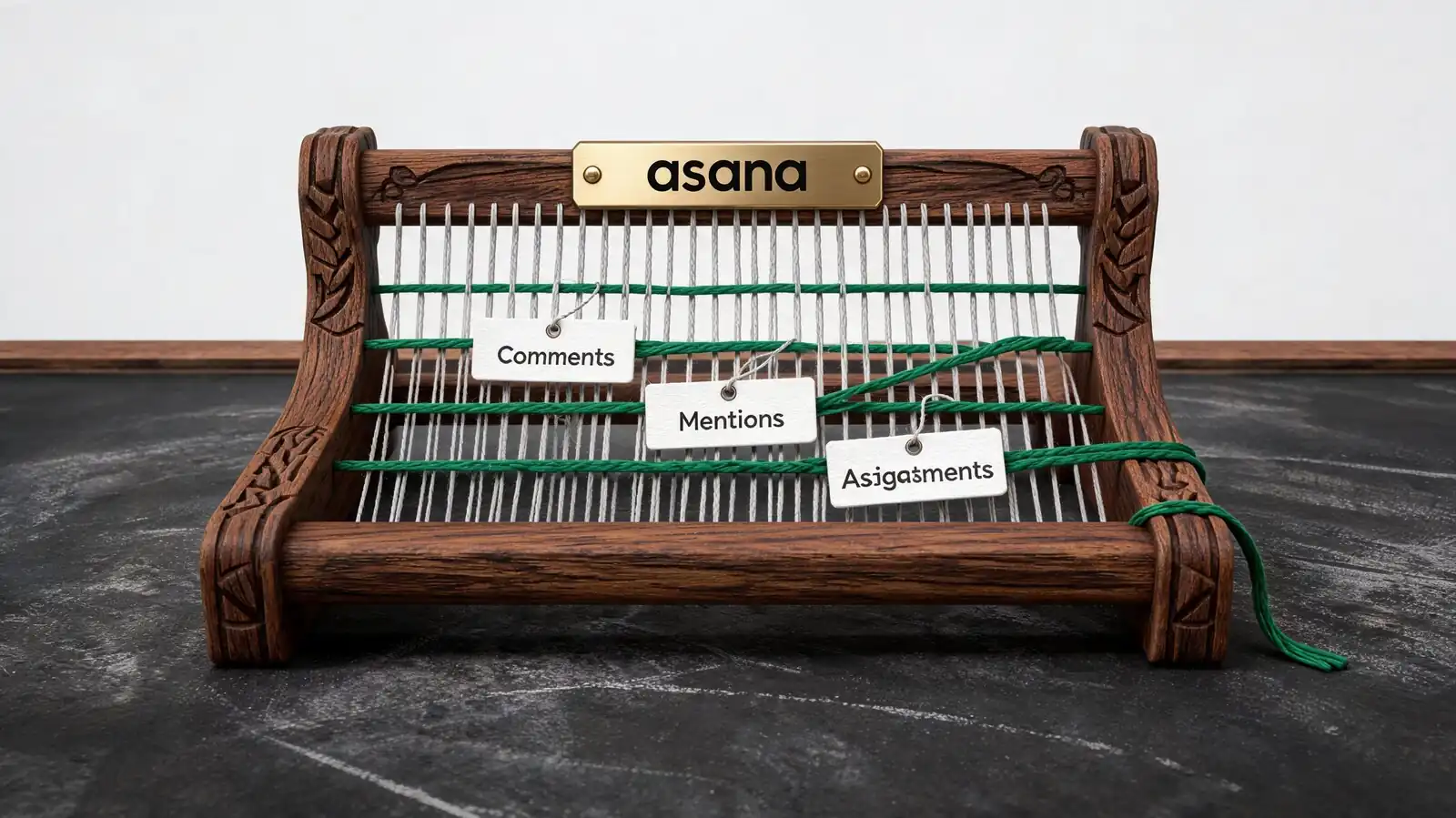
Collaboration Signals Asana Can Track
Asana tracks collaboration through task-level artefacts: comments, @-mentions, files, assignments, approvals, and status updates. The history per task captures how a decision was reached.
The unit of collaboration in Asana is the task, not the project. Comments, decisions, and attachments live with the task; project-level chatter is rare.
- Comments and mentions — threaded discussion at the task level; @-mention pulls in a person or team
- Assignments — clear single ownership; collaborator field for context-only follows
- Files and decision context — attachments inherit Drive/Box permissions; image annotation for proofing
- Status updates — weekly narrative on each project; the part read by stakeholders who don\'t open Asana
- Decision history — task comments + status updates + approval decisions form the audit trail
Keep decisions in the task. When discussion moves to Slack and decisions get made there, six months later no one can reconstruct why the work shipped the way it did.
Discussion in tasks; decisions in tasks. Chat for pings, not for decisions.
Async Work for Distributed Teams
Asana is designed for async work. Status updates replace standups; threaded task comments replace short chat threads; notification routing keeps each user on their own rhythm.
The team that thrives on Asana writes more and meets less. The team that fights Asana keeps reaching for chat or video to make decisions, then loses the audit trail.
- Status updates across time zones — weekly written narrative; read whenever, no meeting required
- Notification settings — turn off email by default, keep Inbox; review Slack/Teams routing monthly
- Handoff workflows — when section moves to Ready for Design, auto-assign and comment with brief; designer picks up next time zone
- My Tasks — personal queue; each user works on their own schedule within agreed-on cadence
- Documentation — pin a README task to each project with stage definitions and contact rules
For distributed teams, the cadence rule is: synchronous when judgement and creative work are needed; asynchronous for everything else.
Status updates and threaded comments replace standups. Sync only when judgement is required.
Integrations With Team Tools
Slack, Microsoft Teams, Google Drive, Box, Dropbox, Zoom, and Outlook cover the common integration set. Each integration trades a context switch for a coupling — pick the ones that actually save time.
Most teams use 3–5 integrations seriously. Adding more usually doesn\'t reduce context switching; it just creates more notification surfaces.
- Slack / Teams — task creation from messages, project update notifications, mention forwarding
- Calendar — Google Calendar or Outlook; push task due dates as events for personal time-blocking
- Docs and files — Drive, Box, Dropbox, OneDrive; embed and preview without leaving the task
- Video — Zoom, Loom, Google Meet; attach recordings or async videos directly to tasks
- Integration limits — some require admin authorisation; review the connected-apps list quarterly
If a teammate complains they\'re juggling five apps, the answer isn\'t a sixth integration. Look at whether one app should be the source of truth and others read-only.
Three to five integrations covers most teams. More integrations rarely reduce context switching.
Dashboards for Collaboration Health
Collaboration dashboards measure flow and gaps, not volume. Blocked work, ownership gaps, overdue updates, and response patterns show where collaboration is healthy and where it has stalled.
Useful collaboration metrics are about gaps and delays. Volume metrics — comment counts, mention counts — are easy to game and rarely correlate with real teamwork.
- Blocked work — count of tasks marked blocked, by project and owner; surfaces where to unblock
- Ownership gaps — tasks with no assignee; usually drift in projects without a strong owner
- Overdue updates — projects without a status update in 14+ days; first sign of project rot
- Response patterns — time-to-first-comment after assignment; sometimes useful, often noisy
- Vanity metrics to avoid — total comments per project, total mentions per user, "engagement" scores
If a metric makes the team look productive but feels off, trust the feeling. Volume isn\'t value.
Track blocked work, ownership gaps, overdue updates. Skip comment counts and engagement scores.
When Asana Is Not Enough
Asana works well as a collaboration hub for work itself. It is the wrong tool when conversational depth, document collaboration, or client-facing communication dominates.
Recognise the failure mode early. Forcing Asana to be a chat tool or a document platform creates friction; pairing it with the right adjacent tool reduces friction.
- Real-time chat — Slack or Microsoft Teams; Asana is not designed for instant conversation
- Document collaboration — Notion, Google Docs, or Coda for long-form documents; link from Asana tasks
- Client communication — keep separate; client portal tools (Plutio, Bonsai) or shared Drive folders work better
- Whiteboarding — Miro, FigJam, or Mural; link from tasks where decisions ground
- Knowledge base — Notion, Confluence, or Coda; link Asana tasks to relevant pages
The pattern that scales: Asana for work, chat for pings, docs for thinking, video for relationship-building. Each tool has a purpose; using one for everything causes friction.
Asana for work, chat for pings, docs for thinking, video for relationships. One-tool-fits-all causes friction.
Frequently asked questions
Can I @-mention teams in Asana comments?
Yes. @-mentions support individuals, teams, projects, and other tasks. Mentioning a team notifies all members; mentioning a project links it in the comment without notifying everyone. The mention syntax is the same as in most modern collaboration tools.
How do I reduce notification overload from Asana?
Turn off email notifications first — that's the largest single change. Keep Inbox notifications on; route Slack/Teams alerts to specific project channels you explicitly follow. Review notification settings quarterly because new projects and integrations quietly add noise over time.
Does Asana support real-time chat?
Not in the chat-tool sense. Task comments are threaded and persistent, not real-time conversation. For instant messaging, pair Asana with Slack or Microsoft Teams; the integration creates tasks from chat messages and pushes Asana updates to chat channels.
Can external collaborators see and comment on tasks?
Yes, if invited as guests. Guests on Starter and above are unlimited and don't count against the user seat. Guest permissions are configurable: comment-only, edit, or project admin. Sensitive workspaces should restrict guest visibility before inviting external collaborators.
How do I track decisions made in Asana?
Keep decisions in the task comment thread or in the project status update. The task history captures who decided what and when. If chat or email played a role, paste the relevant excerpt into a comment so future readers can reconstruct the decision without a hunt.