Asana Workload Tracking for Team Capacity
What Employee Tracking Means in Asana
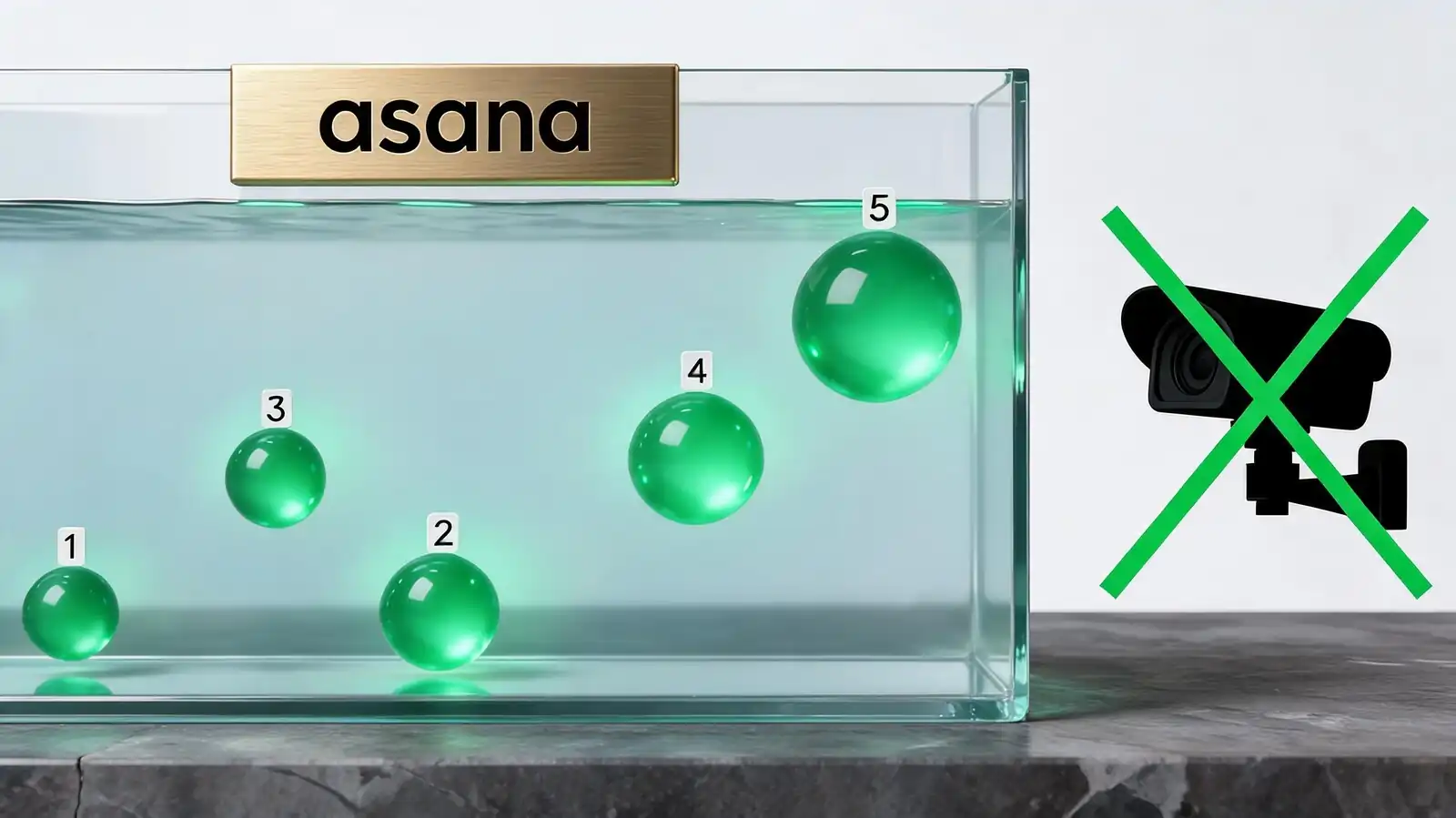
Asana frames the concept as work visibility, not employee monitoring. Managers can see what each person owns, how loaded they are, and where they are blocked — not whether they were active on their laptop at 2:14 pm.
Asana deliberately does not include keystroke logging, screenshot capture, idle detection, or active-window tracking. Those features live in a different software category (Hubstaff, Time Doctor, ActivTrak). Choosing Asana implicitly signals a trust-based culture; choosing a monitoring tool signals a different one.
- Tasks and owners — every task has exactly one accountable owner; this is the foundation of any "tracking" in Asana
- Accountability signals — completed tasks, overdue tasks, blocked tasks, status updates
- What Asana cannot monitor — keystrokes, screen activity, idle time, app usage, location
- What it can monitor — task completion, time logged (Advanced plan), comment activity, status updates
- Surveillance framing — explicitly avoided in Asana\'s product positioning
For organisations that need monitoring-grade data, Asana is the wrong tool. For organisations that need to see who is overloaded and who has slack, it is one of the better choices.
Asana tracks work visibility, not employee behaviour. No keystrokes, no screenshots — by design.
Workload and Capacity Views
The Workload view on Advanced shows tasks per person across a date range, with capacity warnings when someone is overloaded. Capacity is measured in tasks or in a numeric custom field (typically hours or story points).
Workload is the most useful "people tracking" view in Asana. It turns 200 individual task assignments into one screen that managers actually look at weekly.
- Capacity unit — task count or a numeric field; effort estimates work better than raw task count for knowledge work
- Per-person capacity — set in hours per week or story points per sprint; default is "tasks per day"
- Overload warning — bar turns red when planned work exceeds set capacity for a date range
- Cross-project view — Workload aggregates assignments from all projects in the team, not a single project
- Plan limits — Advanced and above only; Personal and Starter do not include Workload
The most common rollout mistake: leaving capacity unset. With no capacity defined, the view becomes a bar chart of task counts and loses its warning value.
Workload (Advanced+) shows per-person capacity across projects. Set capacity values — otherwise it's just a bar chart.
Dashboards for Team Leads
Team-lead dashboards combine delivery signals (completed and overdue tasks) with capacity signals (workload, time logged). The goal is to see where the team is blocked, not who is "underperforming".
A typical team-lead dashboard uses six to eight cards. Most leads land on the same shape after a month of iteration.
- Overdue tasks by owner — bar chart; shows where unblocking effort is needed
- Tasks completed this week — number card; useful for retro context, not for ranking
- Blocked tasks by project — list card; flags structural problems, not individual performance
- Workload trend — bar chart of planned hours per person, with capacity overlay
- Time tracked per project — only on Advanced; shows where the team is actually spending hours
- Coaching context — pair quantitative cards with the task list to ground 1:1 conversations
Dashboards inform conversations; they don\'t replace them. Using "tasks completed this week" as a performance metric leads to gaming and inflated subtask counts.
Six to eight dashboard cards focused on blockers and capacity. Skip "tasks completed" as a performance metric.
Privacy, Permissions, and Trust
Permission controls determine who sees whose work. Project membership, private tasks, and admin role decide visibility. Get the defaults wrong and trust collapses fast.
Permissions are granular but require deliberate setup. Five rules cover most concerns.
- Private tasks — visible to assignee and explicit collaborators only; never to managers automatically
- Project membership — three roles: comment-only, edit, project admin; default to least-privilege
- Workspace admins — can see all non-private work; document who holds the role and audit twice a year
- Time tracking visibility — admins see all, non-admins see their own; align expectations in writing before rollout
- Avoiding micromanagement — review the team dashboard, not individual task lists; respect personal task ordering
A useful internal rule: managers may pull team-level dashboards anytime, but individual task lists are reviewed only during 1:1s, retros, or scheduled performance conversations.
Default to least-privilege permissions. Review team dashboards anytime, individual lists only during 1:1s.
Best Use Cases and Alternatives
Asana is the right tool for project teams that want visibility, agencies that track billable capacity, and operations teams that need to balance workload. It is the wrong tool when surveillance or HR-grade reviews are the goal.
Different tools fit different intents. Picking the right one is more about motivation than features.
| Need | Right tool |
|---|---|
| Visibility into workload and blockers | Asana |
| Billable-hour tracking for client work | Asana + Harvest or Everhour |
| Screenshot or activity monitoring | Hubstaff, Time Doctor, ActivTrak (with consent and policy) |
| Formal performance reviews and 360s | Lattice, 15Five, Culture Amp |
| Compensation and HRIS data | BambooHR, Rippling, Workday |
- Pair Asana with Lattice for delivery context inside review cycles, not for the review itself
- If monitoring software is mandated for compliance, disclose it in writing and explain the data flow
- If managers want "more visibility", check whether they need different reports or fewer projects — adding tools rarely fixes coordination issues
The hardest call is usually whether the team needs more measurement or better conversations. More measurement without conversations usually backfires.
Asana for workload visibility, dedicated tools for surveillance or HR. More measurement without conversations backfires.
Frequently asked questions
Can Asana monitor employee screen activity?
No. Asana does not record screen activity, take screenshots, or log keystrokes. It tracks task ownership, due dates, time entered against tasks (on Advanced), and comment activity. Tools like Hubstaff, Time Doctor, and ActivTrak handle screen-level monitoring and operate as separate products.
What is the Workload view in Asana?
A view on the Advanced plan and above that shows each person's assigned work across projects, with capacity warnings when planned effort exceeds a set limit. Capacity is measured in tasks or in a numeric custom field, typically hours or story points.
Can managers see private tasks?
No. Private tasks are visible only to the assignee and explicit collaborators. Workspace admins can see all non-private work, but private tasks remain hidden. Document this clearly during onboarding so the boundary is understood by all roles.
Is Asana enough for performance reviews?
Asana provides delivery context (completed work, capacity, blockers) but is not a performance management system. Pair it with a dedicated tool like Lattice, 15Five, or Culture Amp for review cycles, 360s, goal-setting frameworks, and compensation discussions.
How do I track team capacity without surveillance?
Use the Workload view with capacity set in hours or effort units, plus a weekly dashboard showing blocked work and overdue tasks. Review at the team level; respect individual task ordering. Pair the data with regular 1:1 conversations rather than treating it as a scorecard.